

Excluding mobile apps in Google Ads
Optimising campaigns is an important part of the results of a Google Ads campaign. It is essential for maximising ROI and reducing unnecessary costs. One of the ways to achieve this within Google Ads is to exclude mobile apps as placements for your ads. This can be useful within Performance Max campaigns. Automation and machine learning are an important part of this campaign type, but as a marketer there are some points you still want to keep control over. In this article we discuss why and how you can exclude mobile apps from your Google Ads campaigns.
Why exclude mobile apps?
Not showing your ads within apps that are part of the Google network can be beneficial for several reasons:
- Cost: By excluding irrelevant placements such as certain apps, you avoid wasting your ad budget on clicks that don’t lead to conversions. People who are active in a mobile app on their phone can easily click on your ad by accident. You may recognise this yourself: accidentally tapping an ad with your thumb. It makes no difference to the user, but for you as an advertiser this click costs money.
- Relevance: Many mobile apps attract a general audience that may not be relevant to your specific product or service.
- Engagement: Users in apps are often less inclined to interact with ads, as they are focused on the app content.
- Control over brand image: Some apps may not be in line with the image you wish to maintain for your brand.
When to exclude mobile apps?
Excluding mobile apps in Google Ads campaigns is important for Performance Max campaigns, video and display campaigns. In Performance Max campaigns, where Google automatically looks for the best placements to achieve goals, excluding certain apps provides extra control to make sure the automation doesn’t come at the expense of your budget . Avoiding apps that are known for low engagement or that are irrelevant to the product or service offered can improve the overall effectiveness of the campaign and reduce unnecessary spend.
How to exclude mobile apps in Google Ads
The process of excluding mobile apps in your Google Ads campaigns is fairly simple:
Step 1: Log in and click on the view of all campaigns
Log in to your Google Ads account and select all campaigns. You do this by clicking on all campaigns in the left-hand menu
Step 2: Go to the content heading in the left-hand menu
Once you have clicked on content, you will see a table with exclusions on the right.

Step 3: Click on edit exclusions
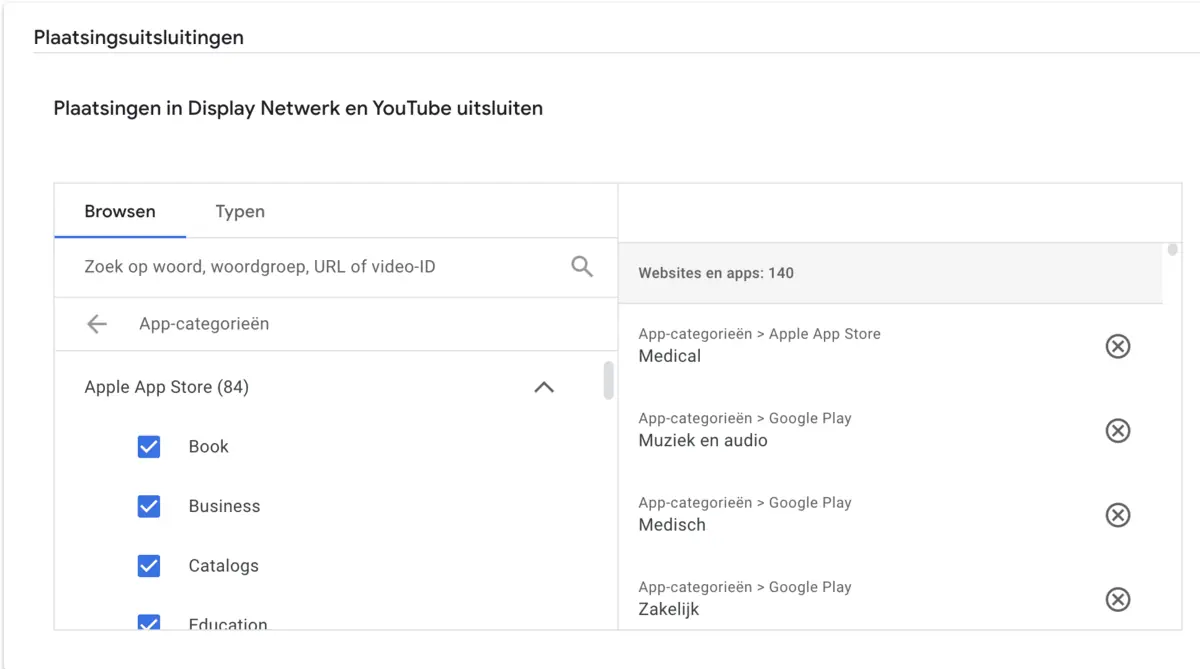
Here you can choose to add placement exclusions at three different levels: account, campaign or ad group. In most cases we choose account here. The exception is a large company with high budgets that has brand awareness as its goal and actually wants to be shown in apps. Google Ads also offers the option of excluding entire categories of apps. This is the fastest way. You click on App categories and exclude all 140 (at the time of writing) app categories. You have to tick them all so that you have 140 listed on the right-hand side. Note: sometimes you have to click the arrow on a category to expand it so that you can see all the categories.
Step 4: Save and view exclusions
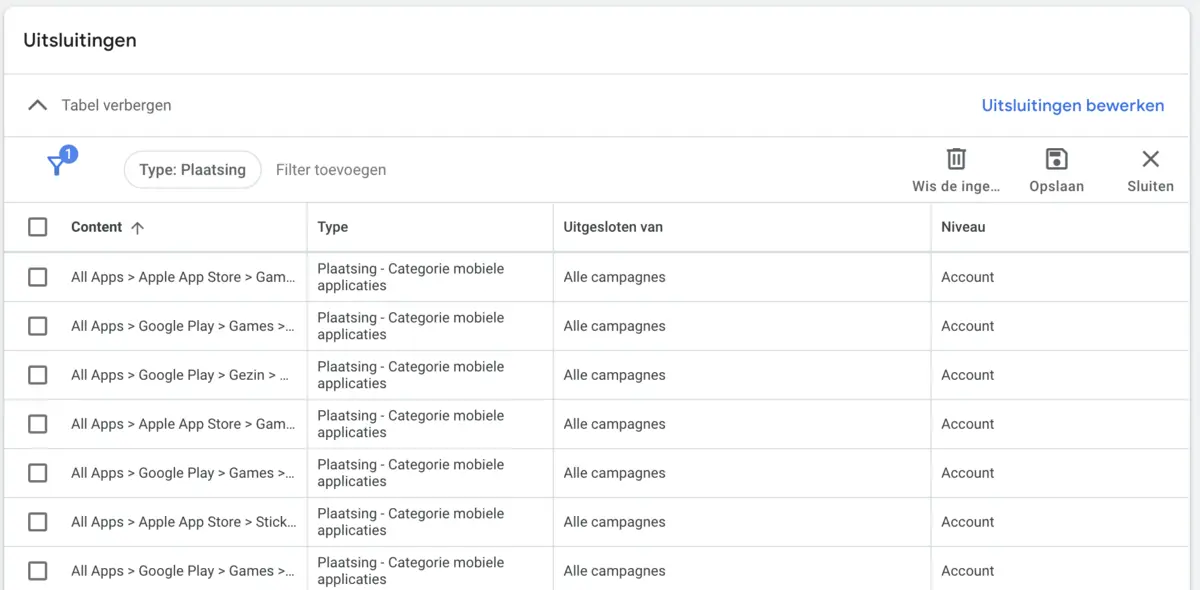
Once you have pressed save, you will see all the exclusions listed one below the other. If you want to stop excluding certain placements in the future, you can untick the exclusions in the list in the same way as above.
Tips for exclusions
By excluding placements you can steer the campaign in a more targeted way and save budget. For accounts with smaller budgets that aim for revenue or leads, we recommend always excluding app placements to save budget. Strategically excluding mobile apps in Google Ads, especially within Performance Max campaigns, can contribute significantly to improving the effectiveness of your ads. By managing placements, you make sure your ad budget is spent more effectively, which leads to better results and a higher ROI.
Start refining your campaign strategy today by excluding underperforming apps. Would you rather talk to a specialist? Get in touch with us and go through the steps together with an expert.